 Fablum
How to listen to audiobooks offline
An audiobook you streamed needs the network every time you press play. One choice at download time is the whole difference.
There are two ways to play an audiobook from the catalog in Fablum, and only one of them survives a tunnel. Streaming keeps the audio on the server and fetches it as you listen; downloading pulls every chapter onto the phone first. The app asks which one you want, every time, and the answer is the whole difference between a quiet train journey and a spinner.
- 1
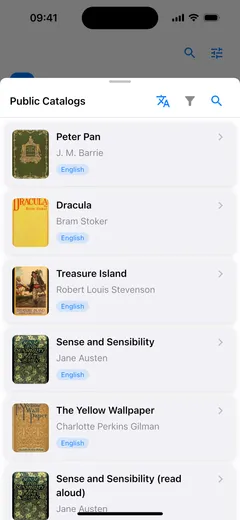
Tap + in your library and choose Public Catalogs. Use the funnel to narrow the list to audiobooks, or search for a title you know.
- 2
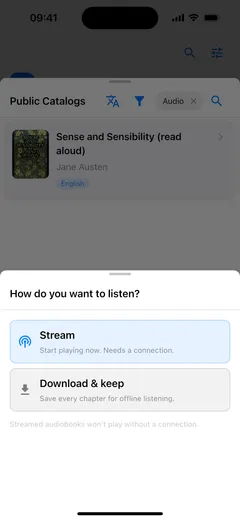
Tap the audiobook. Fablum asks how you want to listen and offers Stream or Download & keep. Choose Download & keep: it saves every chapter for offline listening.
- 3
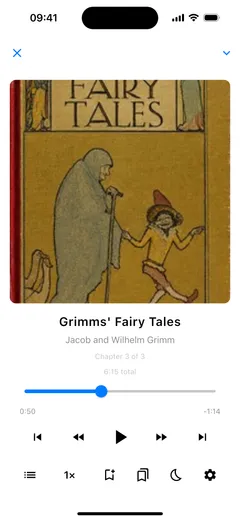
When the download finishes, the audiobook is in your library like any other book. Open it and the player works with the network off — chapters, scrubber, speed, sleep timer and bookmarks included.
Streamed or downloaded
A streamed audiobook is added to your library straight away, without waiting for a download, and it plays from the catalog while you listen. That makes it the right choice when you are sampling a book or short of storage, and the wrong one on a flight: the app says so under the two options, and a streamed book carries a Streaming badge on its cover so you can tell at a glance.
Download & keep does the slower, safer thing. Every chapter is fetched and packed into one audiobook file on the device. After that the book behaves like a file you imported yourself — it opens with no connection and nothing can take it away.
Fablum remembers which option you picked last and highlights it next time, but it still asks, because the right answer changes from book to book.
An audiobook you already have
Packaged audiobooks import like any other file: tap +, choose From Files and pick a
.audiobook or .lcpa file. Those are the two audiobook formats Fablum reads. Loose MP3 and M4B
files are not imported, so for most people the catalog is the quicker route to something to listen
to.
In the player
The player opens on the cover, with the title, the author and the chapter you are in. Underneath it: a scrubber with the time gone and the time left, skip buttons, the chapter list, playback speed from 0.5× to 2× with voices kept natural, a sleep timer that can stop after a set time or at the end of the chapter, and bookmarks named by chapter with the moment you saved.
Playback carries on while you browse your library, from the lock screen and in the background, and it shows up on Android Auto as well.
Looking for something to listen to? Finding free ebooks walks through the same catalog from the reading side.