 Fablum
How to read EPUB books on iPhone
An EPUB you downloaded or were sent lands in the Files app, and which app opens it is up to you. Here is the route into Fablum, and two others.
An EPUB is just a file. Downloaded in Safari, sent as a mail attachment or dropped over AirDrop, it lands in the Files app. Fablum imports it, keeps its own copy on your iPhone and opens it offline.
- 1
Get the EPUB into the Files app. A download in Safari goes to your Downloads folder; a mail attachment can be held down and saved with Save to Files. Anywhere in On My iPhone or iCloud Drive is fine — you only need to find it again in the next step.
- 2
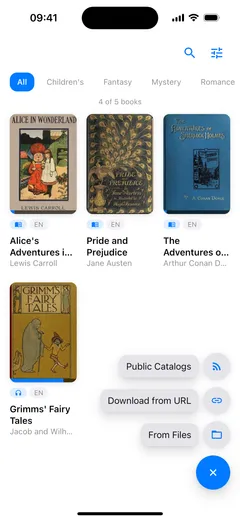
Open Fablum and tap + at the bottom right of your library. Three ways in open up: Public Catalogs, Download from URL and From Files.
- 3
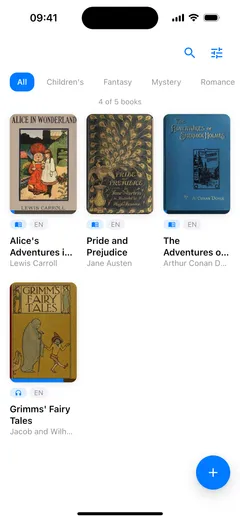
Choose From Files and pick your EPUB. Fablum copies it into your library and pulls the title, the author and the cover out of the file, so the book turns up on the shelf looking like a book.
- 4
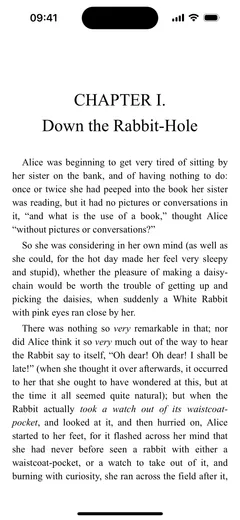
Tap the cover to read. Fablum remembers where you stopped, so the next tap takes you back to that page rather than to the beginning.
If the book is a link
You do not have to download it yourself first. Tap +, choose Download from URL and
paste a direct link to the book file. Fablum fetches it and imports it in one go. The link has to
point at the file itself, the one ending in .epub, rather than at a page about the book.
If another app already has the file
Fablum registers for EPUB, PDF and audiobook files, so it shows up in the iOS share sheet. From Files, Mail, Safari or anything else holding the file: share it, pick Fablum, and the import runs the same way it does from the picker.
There is also a Fablum folder in the Files app. Anything you copy into it is picked up and imported the next time you open the app, which is handy when you are moving several books at once rather than one.
What happens to the file
The import copies the book into Fablum’s own storage. That copy is yours: it sits on the iPhone, opens with the network off, and nothing expires. Your place in the book, your type size and your page colour are saved on the device as well.
Once the book is open, the reader gets out of the way. Type size runs from 70% to 200%, pages can turn or scroll, and the page colour is light, sepia, dark or whatever the system is doing. Set those once and every book you open afterwards follows them.
Formats that work
EPUB and PDF books, plus packaged audiobooks — the .audiobook and .lcpa files. Loose MP3 or M4B
files are not imported, and the catalog built into Fablum is a quicker route to an audiobook anyway:
see how to listen to audiobooks offline
for that. On an Android phone the route is slightly different, and
the Android guide walks through it.