 Fablum
How to read EPUB books on Android
On Android an EPUB you download goes to the Downloads folder. Here is how to hand it to Fablum.
On Android an EPUB you download goes to the Downloads folder and stays there until you open it with something. Fablum takes it from either end: you can pick the file from inside the app, or hand the file to Fablum from your browser or your file manager.
- 1
Download the book, or find the one you already have. Browser downloads land in the Downloads folder; anything you saved from another app is wherever that app put it.
- 2
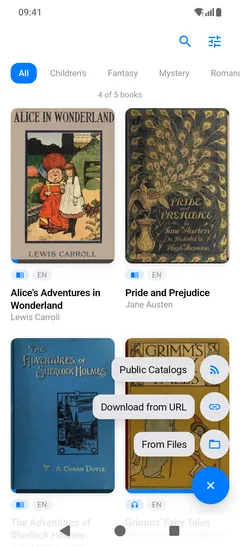
Open Fablum and tap + at the bottom right of your library. The menu offers Public Catalogs, Download from URL and From Files.
- 3
Choose From Files and pick the EPUB. Fablum copies it into your library and reads the title, the author and the cover out of the file.
- 4
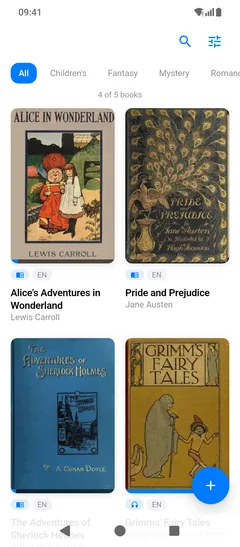
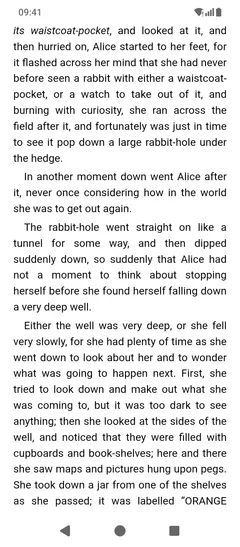
Tap the cover to start reading. Your place is saved as you go, so closing the app in the middle of a chapter costs you nothing.
The shorter way: open with Fablum
Fablum tells Android it can handle EPUB, PDF and audiobook files, so it appears in the “Open with” list. Tap the download notification, or the file in your file manager, pick Fablum, and the book is imported and opened. It is the same import, started from the other side.
If the book is a link
Tap + and choose Download from URL, then paste a direct link to the book file. Fablum
downloads it and adds it to the library in one step. The link must point at the file itself, the one
ending in .epub, rather than at a web page about the book.
What happens to the file
The import makes Fablum’s own copy of the book. That copy lives on the phone, opens with aeroplane mode on, and does not expire. Reading position, type size and page colour are stored on the device with it.
The reader itself is deliberately plain: type size from 70% to 200%, pages that turn or scroll, and a light, sepia or dark page that can follow the system theme. Choose those once and every book opens that way.
Formats that work
EPUB and PDF books, and packaged audiobooks in the .audiobook and .lcpa formats. Loose MP3 and
M4B files are not imported. If an audiobook is what you are after, the catalog inside the app is
faster than hunting for files — listening to audiobooks
offline covers that, and
the iPhone guide covers the same job on iOS.